To access a secret you will need a link generated by Cellar when the secret is created. In the majority of cases, this link will be sent to you by someone who has created a secret they would like to share with you. This link will look similar to the following:
https://cellar.example.com/secret/440028a9b535aa74dae7401e0def34d2fffc861afd496141b0b0b1b00a8e8466/access
To learn how to create a secret, refer to the Creating a Secret.
Once you have received a link to access a secret, simply navigate to the provided URL. The page you see will depend on whether the secret contains text or a file.
For text secrets, you will find a page similar to the one depicted below:
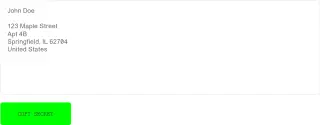
The content of the secret will be displayed in the text area. Pressing the “Copy Secret” button will copy the full contents of the secret to your clipboard.
INFOFile secrets are available in Cellar UI v3.0.0+ with API v2 (Cellar API v3.2.0+).
For file secrets, you will see a page displaying file information:
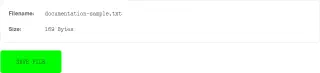
The page shows:
To download the file, click the “Save File” button. Your browser will download the file with its original filename.
Filename Preservation (v3.3.0+): The downloaded file will use the exact filename from the original upload. This preserves file extensions and naming conventions. Older secrets (created before v3.3.0) may use a generic filename pattern.
Security Note: As a security measure, file metadata (filename, size) is only visible when accessing the secret content. It is not displayed on the Secret Metadata page. This prevents information leakage about the secret’s contents.
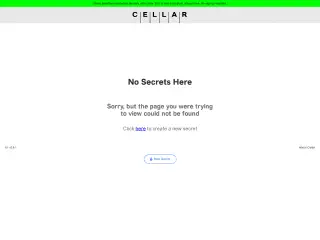
If while accessing secret content, you are redirected to the page below, that means the secret does not exist. Most likely the secret has expired or reached its access limit. Or perhaps the secret creator has chosen to delete it.